For example, you might create Cost Centres for different departments, revenue streams or accounting categories such as:
- Memberships
- Class Packs
- Retail
- Gift Cards
- Birmingham Studio
- London Studio
Creating a Cost Centre - To create a new Cost Centre:
- Go to Business Settings
- Select Product Settings
- Open Cost Centres
- Select Create Cost Centre
- Enter the Cost Centre name
- Add an accounting code if required
- Save
How To Create A New Cost Centre
Learn how to efficiently manage your financial structure by adding a new cost centre in your business settings. This guide walks you through setting up the necessary identification details and activating your new entry to ensure accurate accounting.
1. Navigate to you CodexFit Dashboard.
Business Settings Navigation
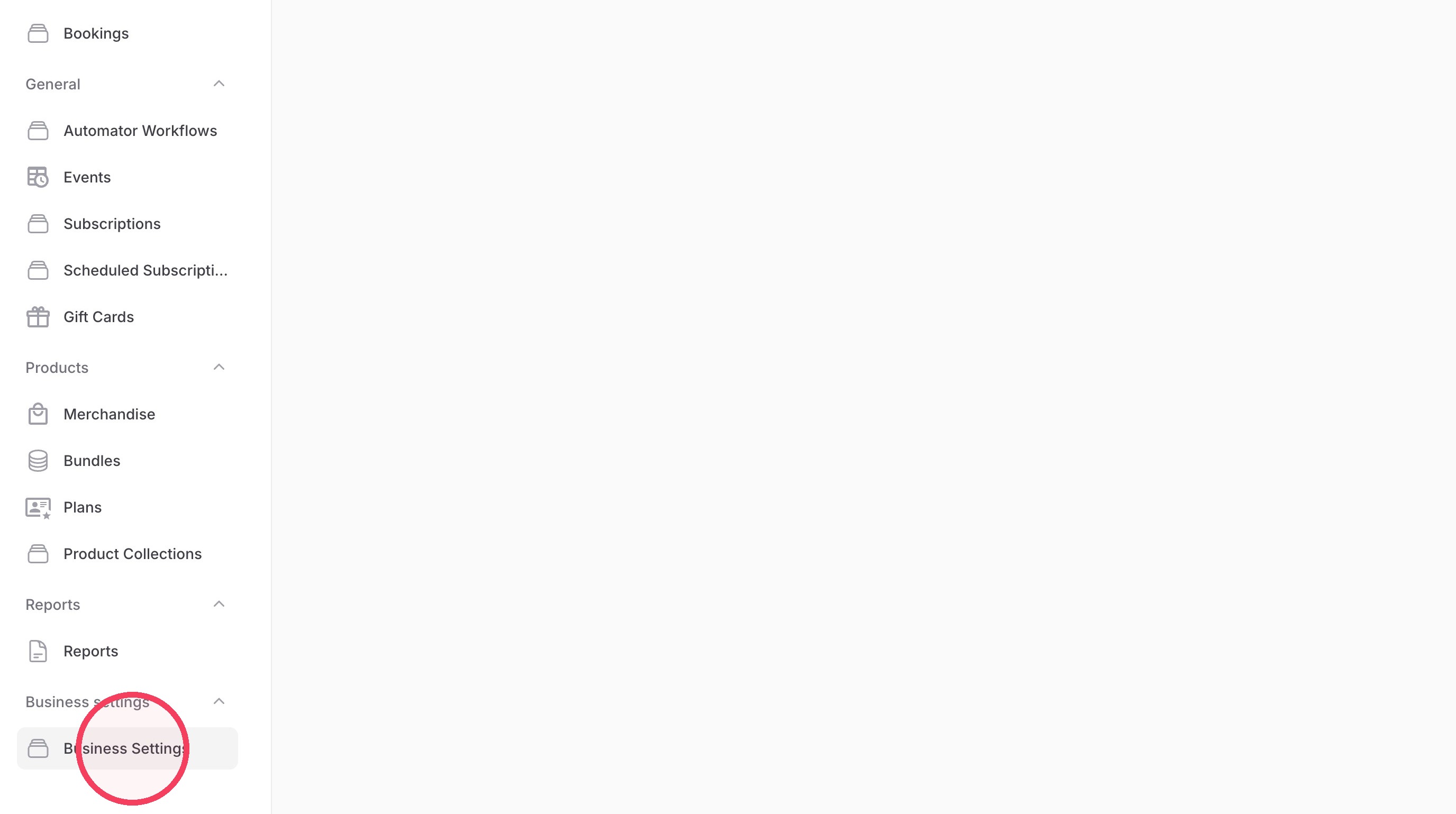
2. Click "Business Settings"
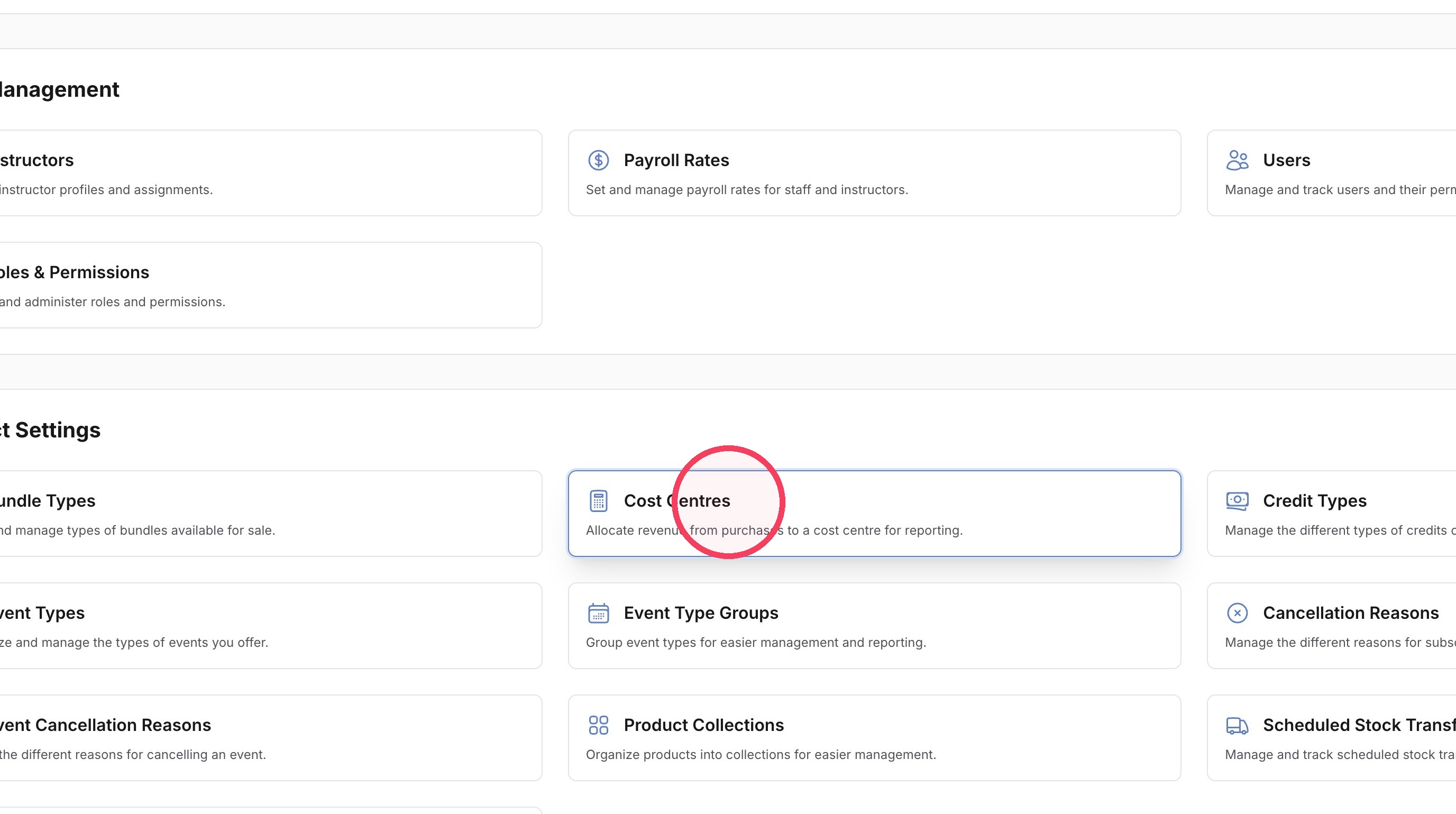
3. Click "Cost Centres"
4. Click "New cost centre"
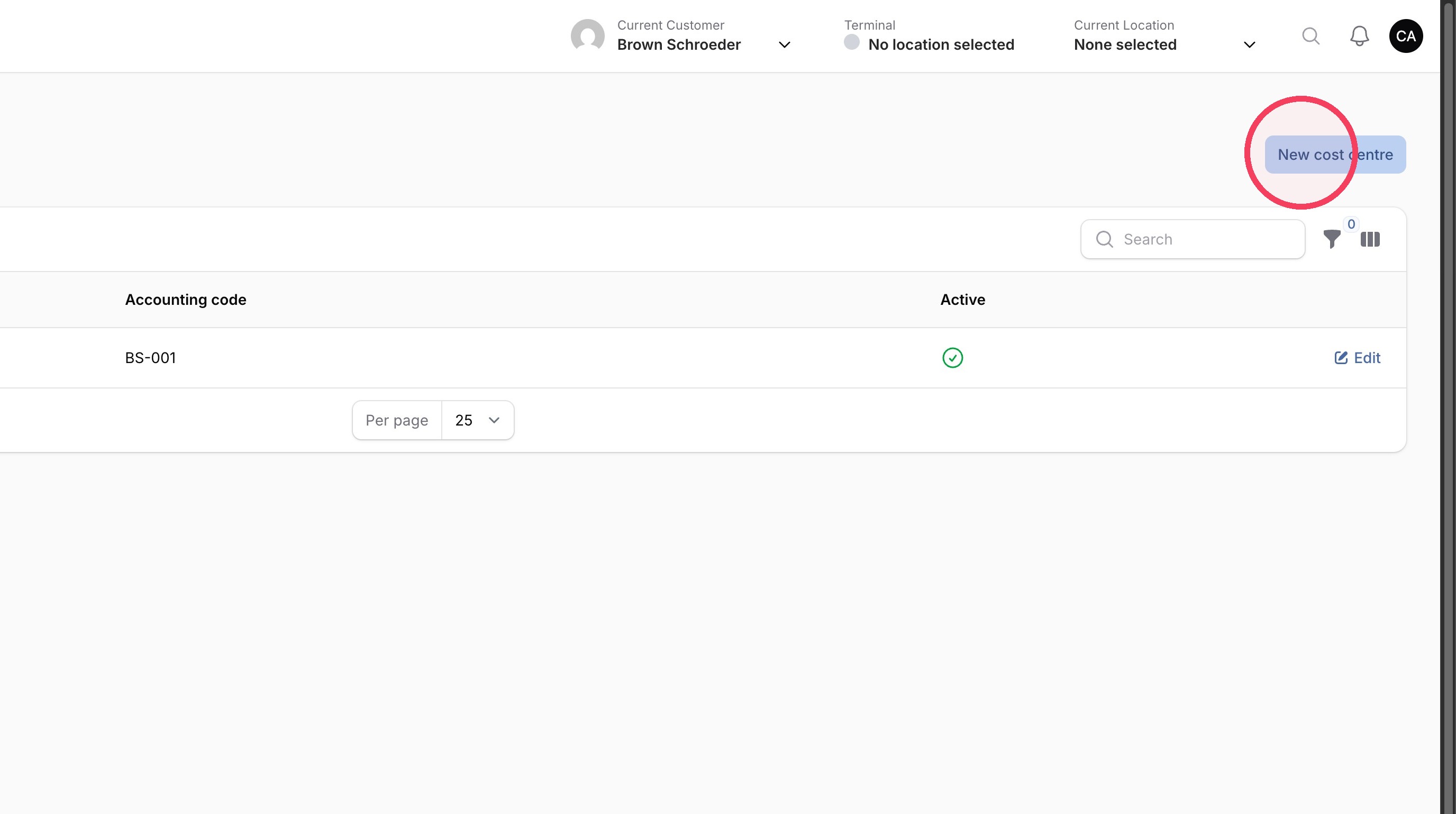
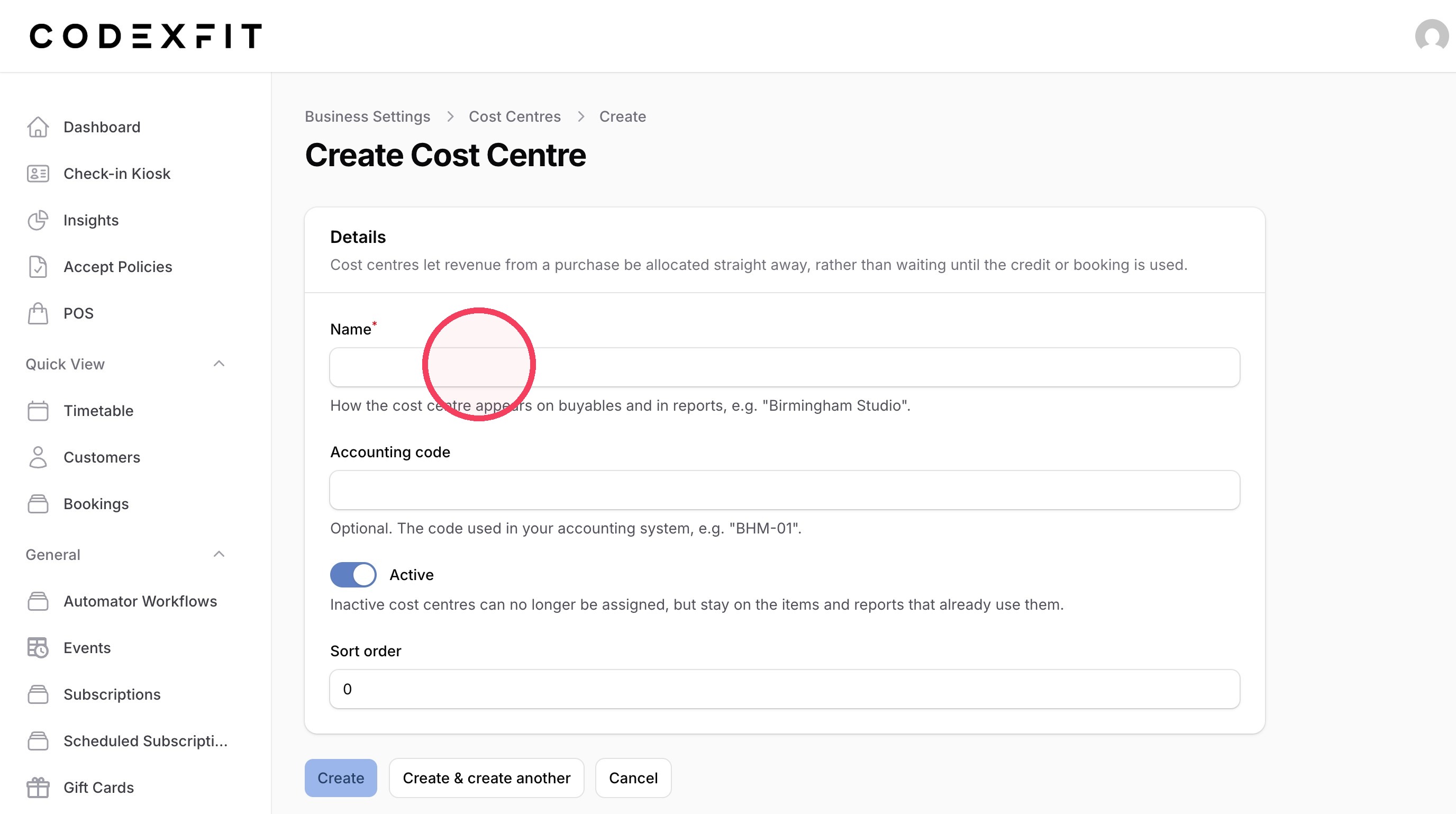
Cost Centre Details
5. Enter the name of your new cost centre in the Name field
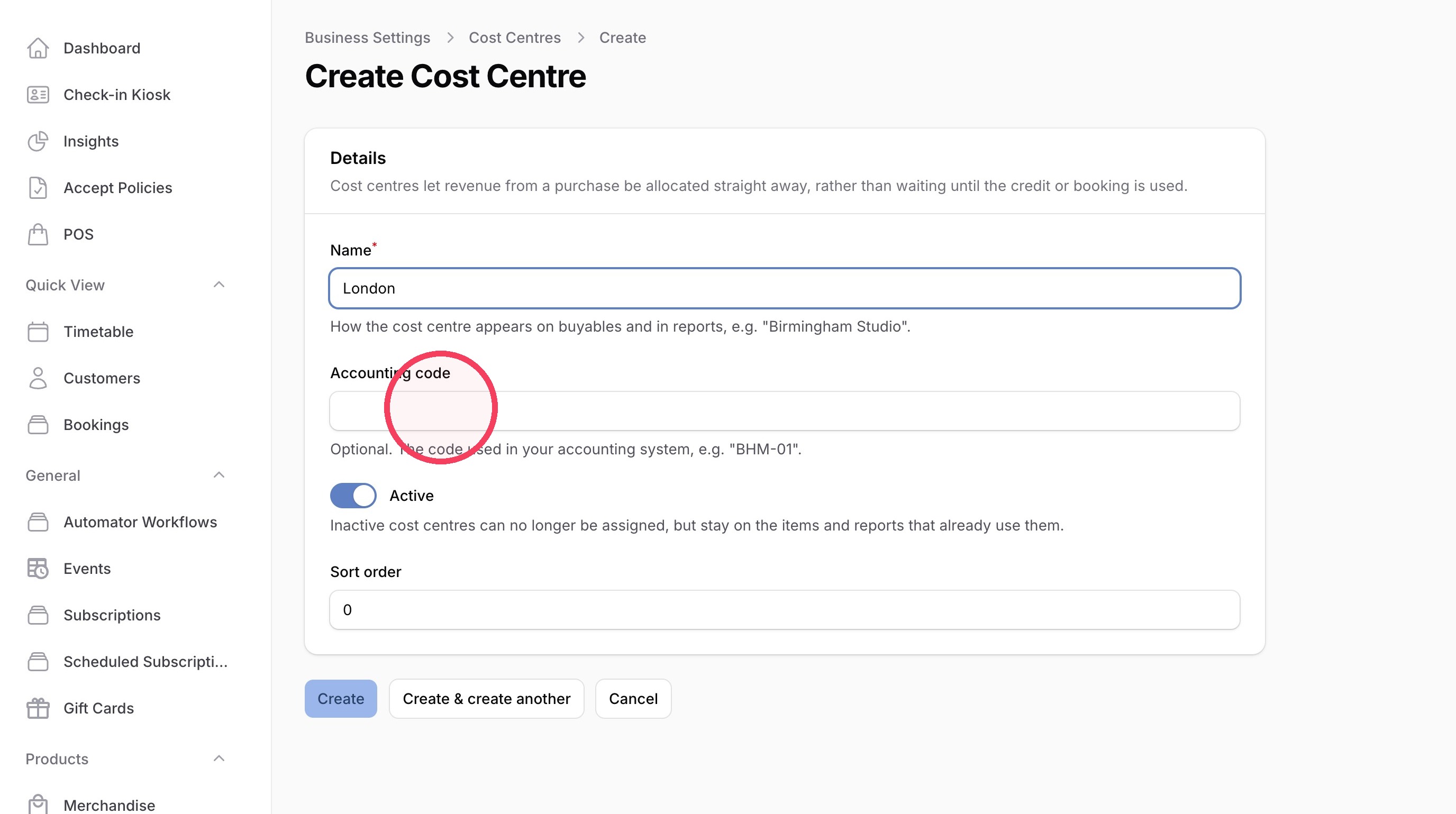
6. Enter an account code in the Accounting code field
7. Click the Active toggle to set this cost centre as active
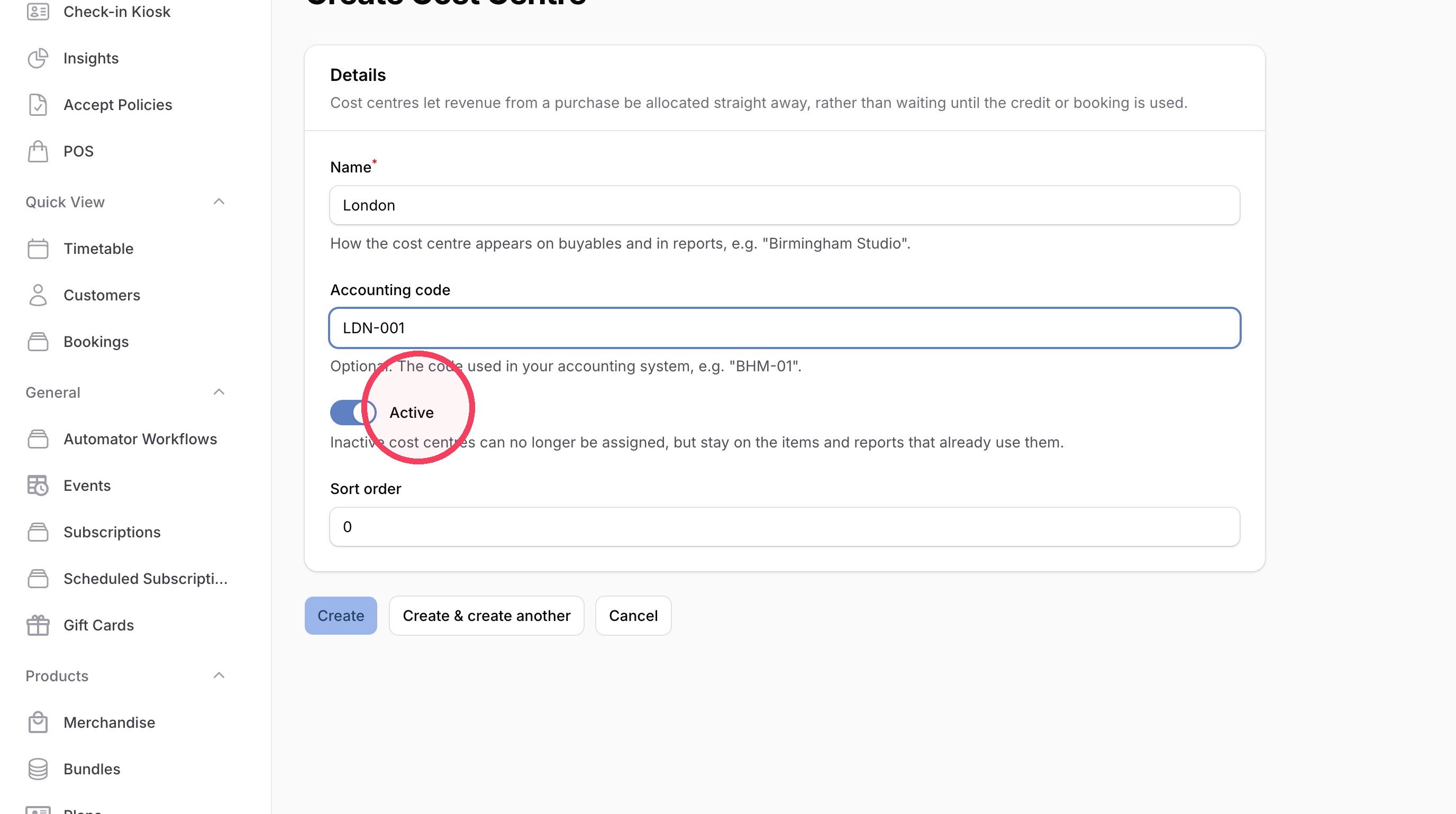
Tip: You can also set the sort order to choose where each cost centre appears in dropdown lists.
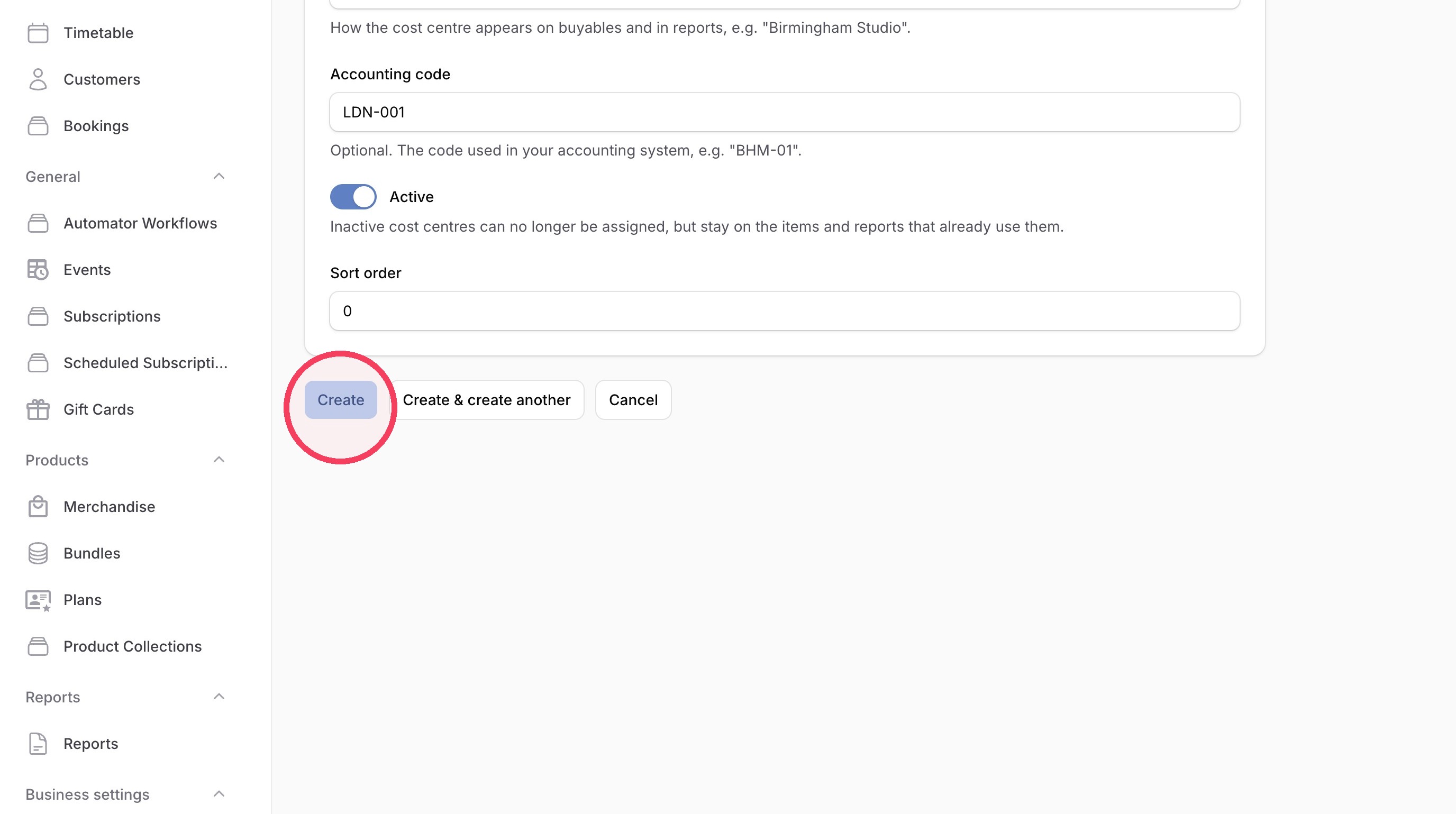
8. Click "Create"
Made with Scribe
Assigning Cost Centres - A Cost Centre can be assigned to:
- Bundles
- Membership Plans
- Products
- Gift Card Products
Updating Merchandise Variant Options In Codex
Learn how to manage and update specific product variant details within your inventory system. This guide provides a quick workflow for navigating the administrative panel to modify and save variant configurations for your merchandise.
Tip: This can also be added to Bundles, Plans and Gift Card products!
1. Navigate to your CodexFit Dashboard
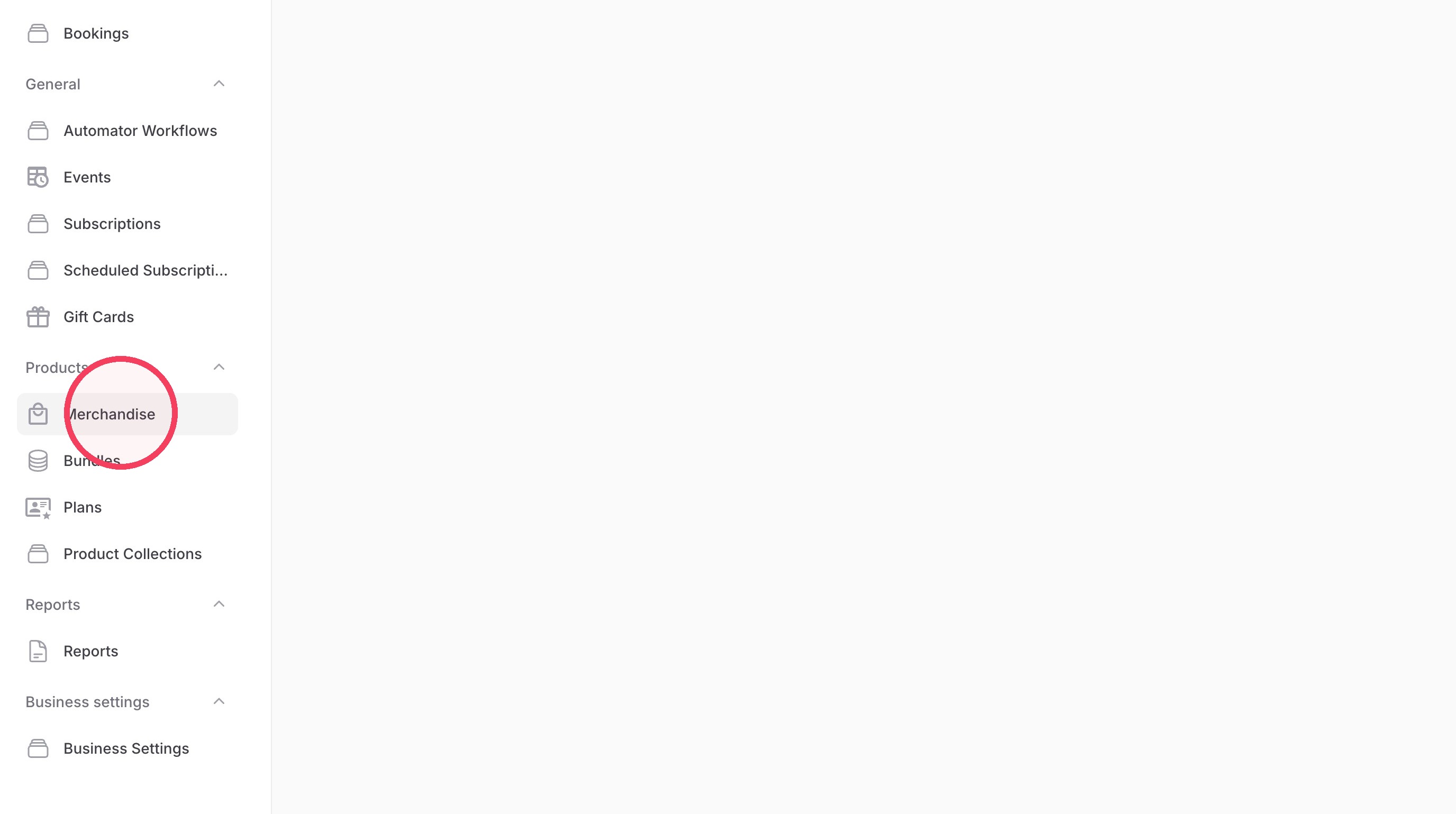
2. Click "Merchandise"
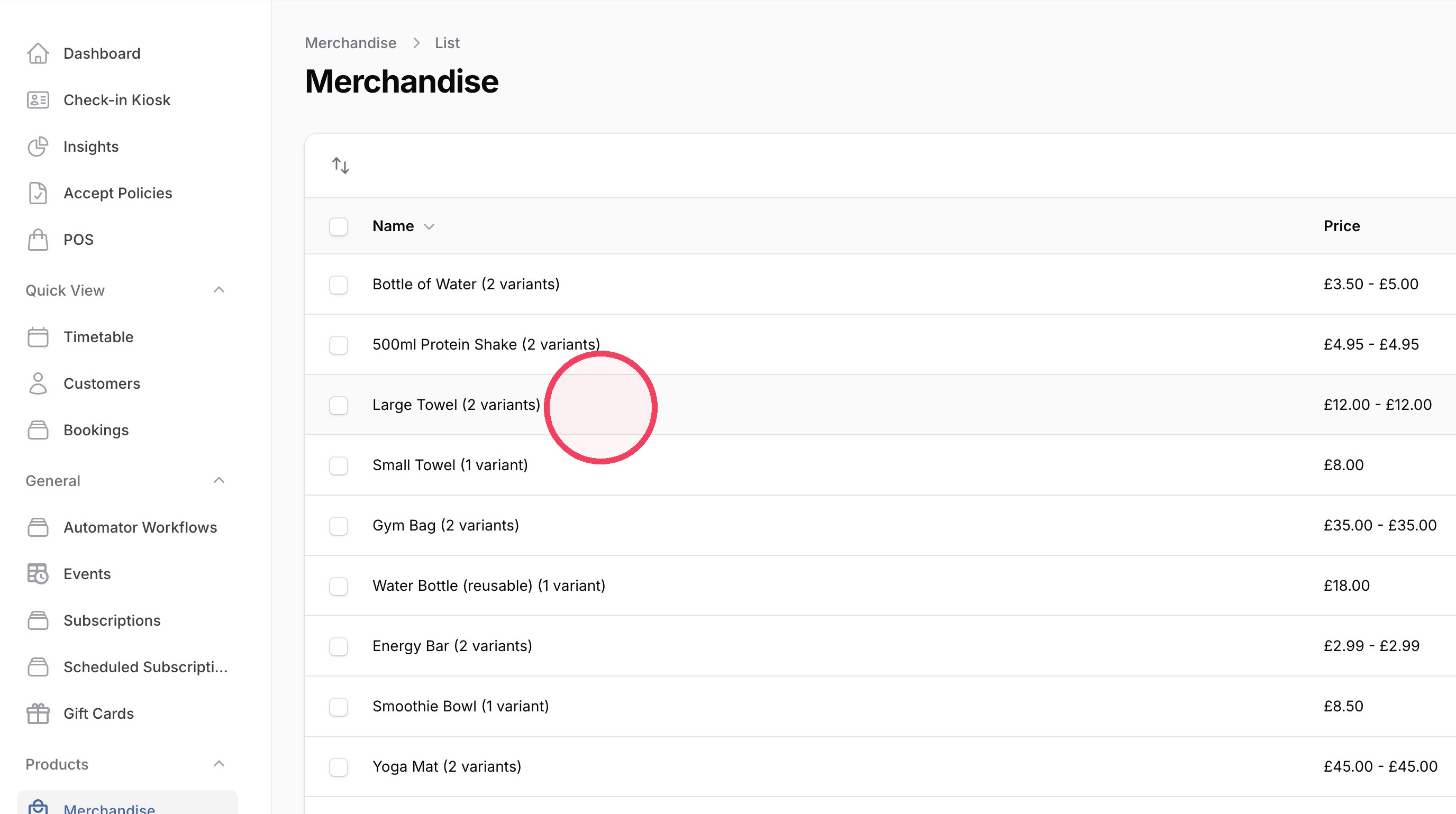
3. Click a product you'd like to add a cost centre to
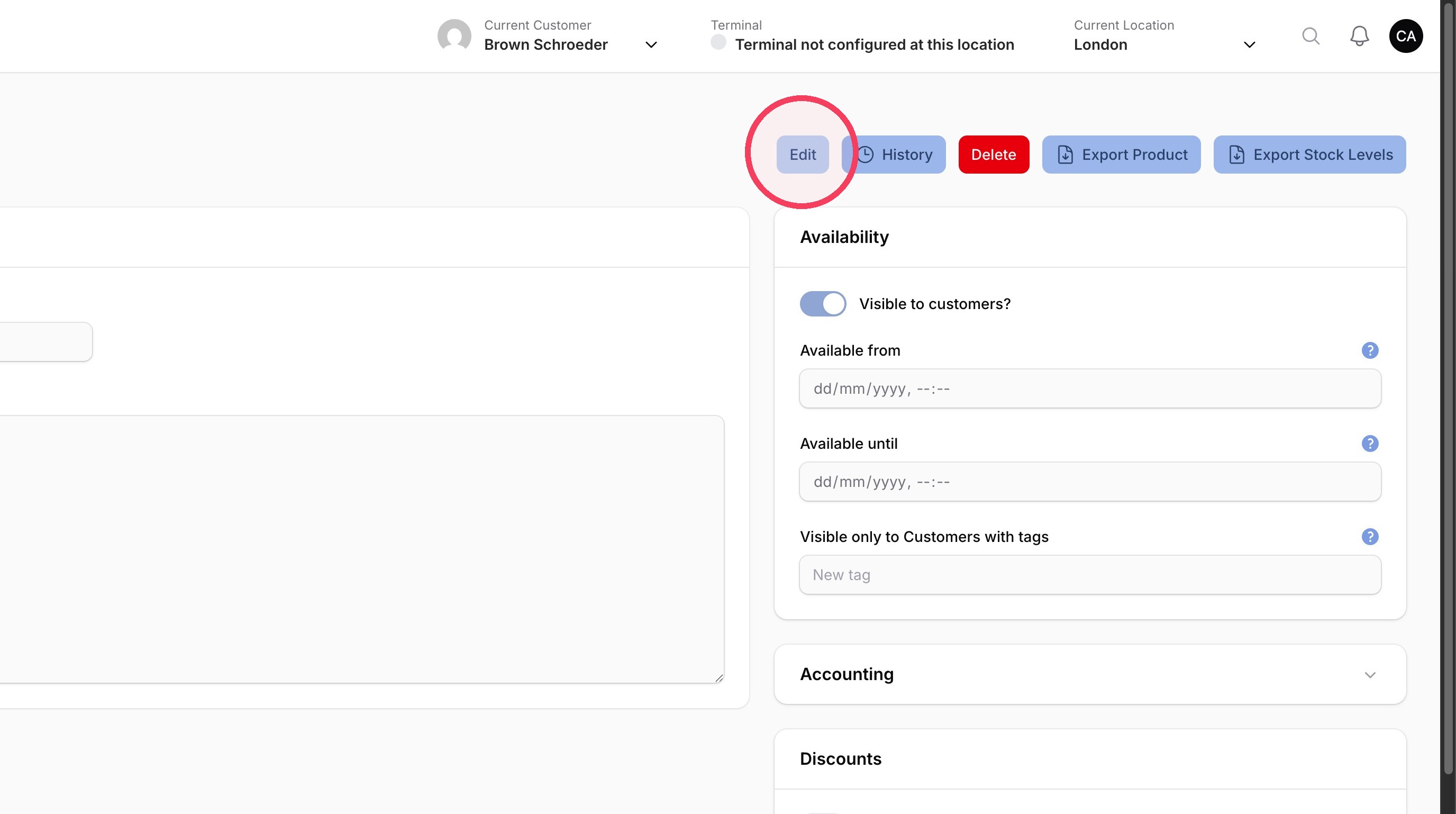
4. Click "Edit"
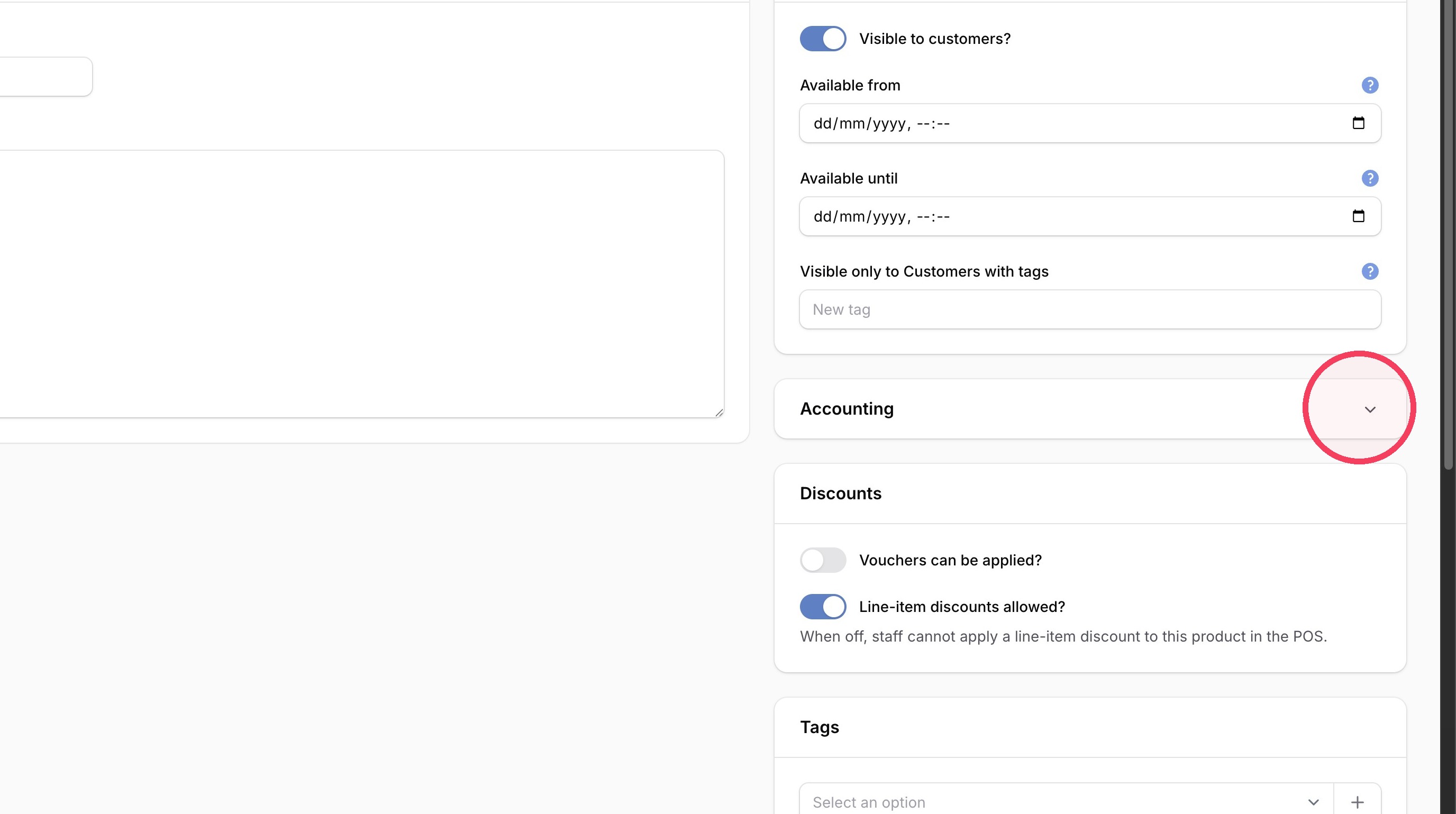
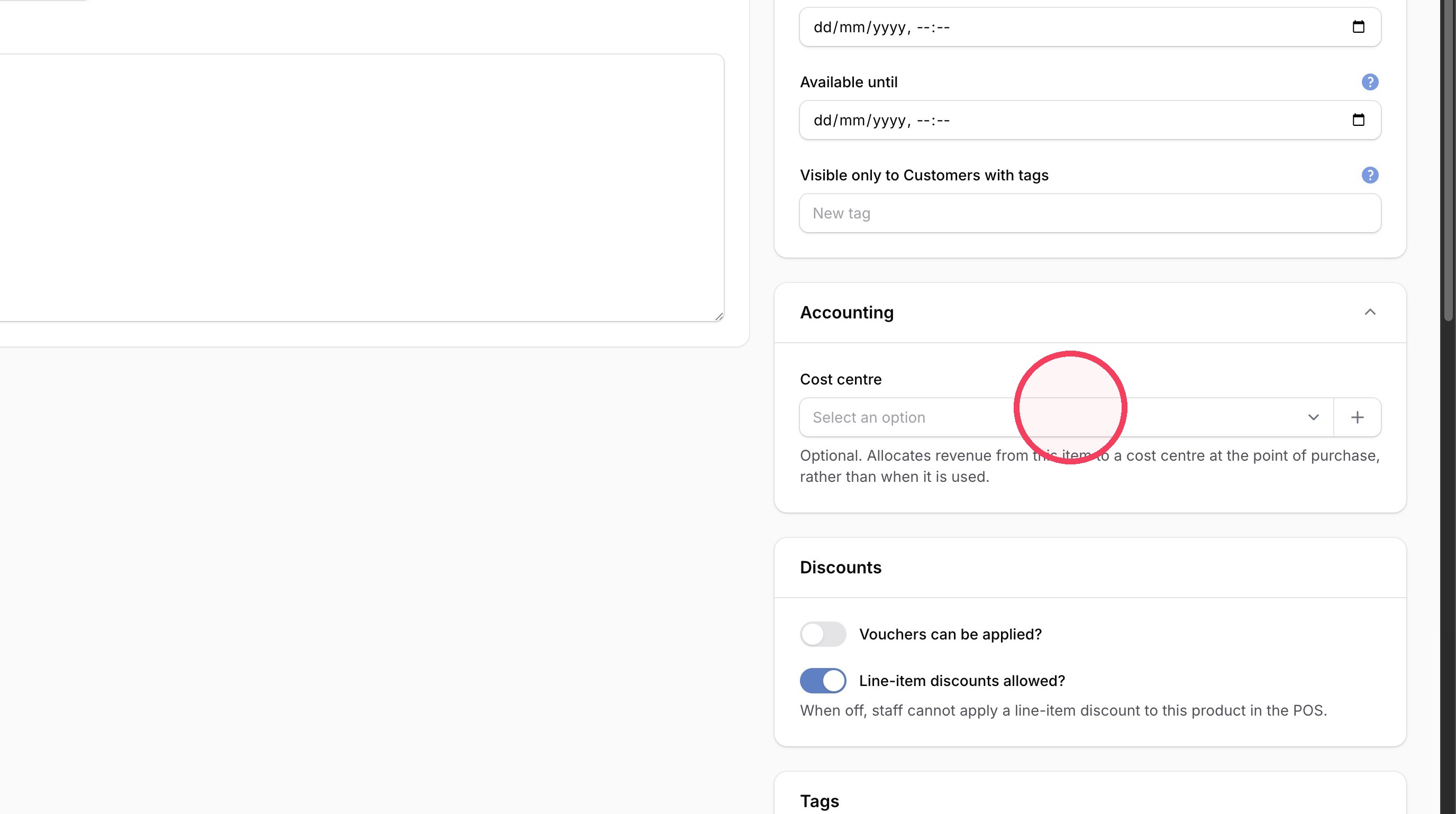
5. Expand the accounting section
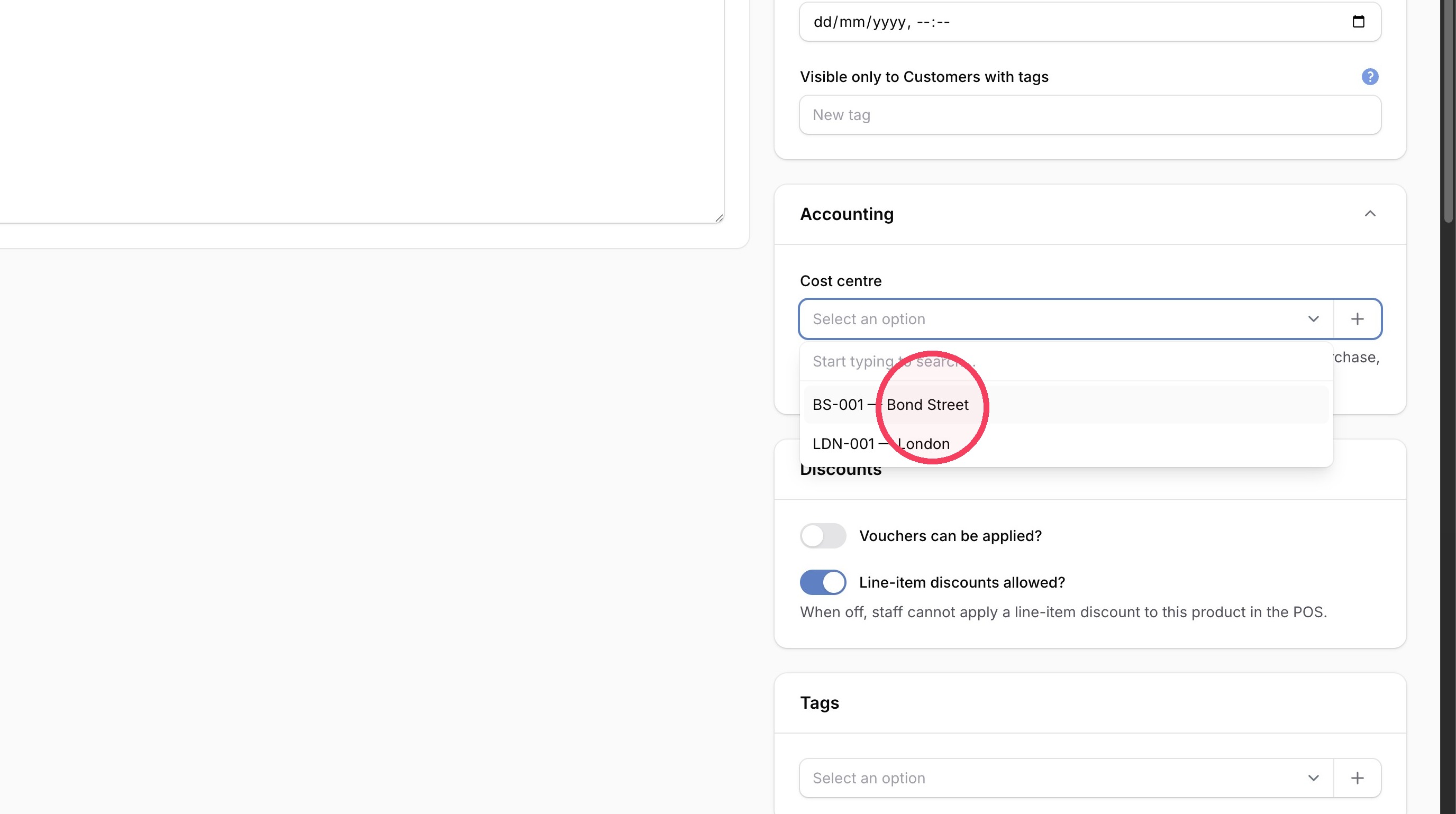
6. Select your cost centre
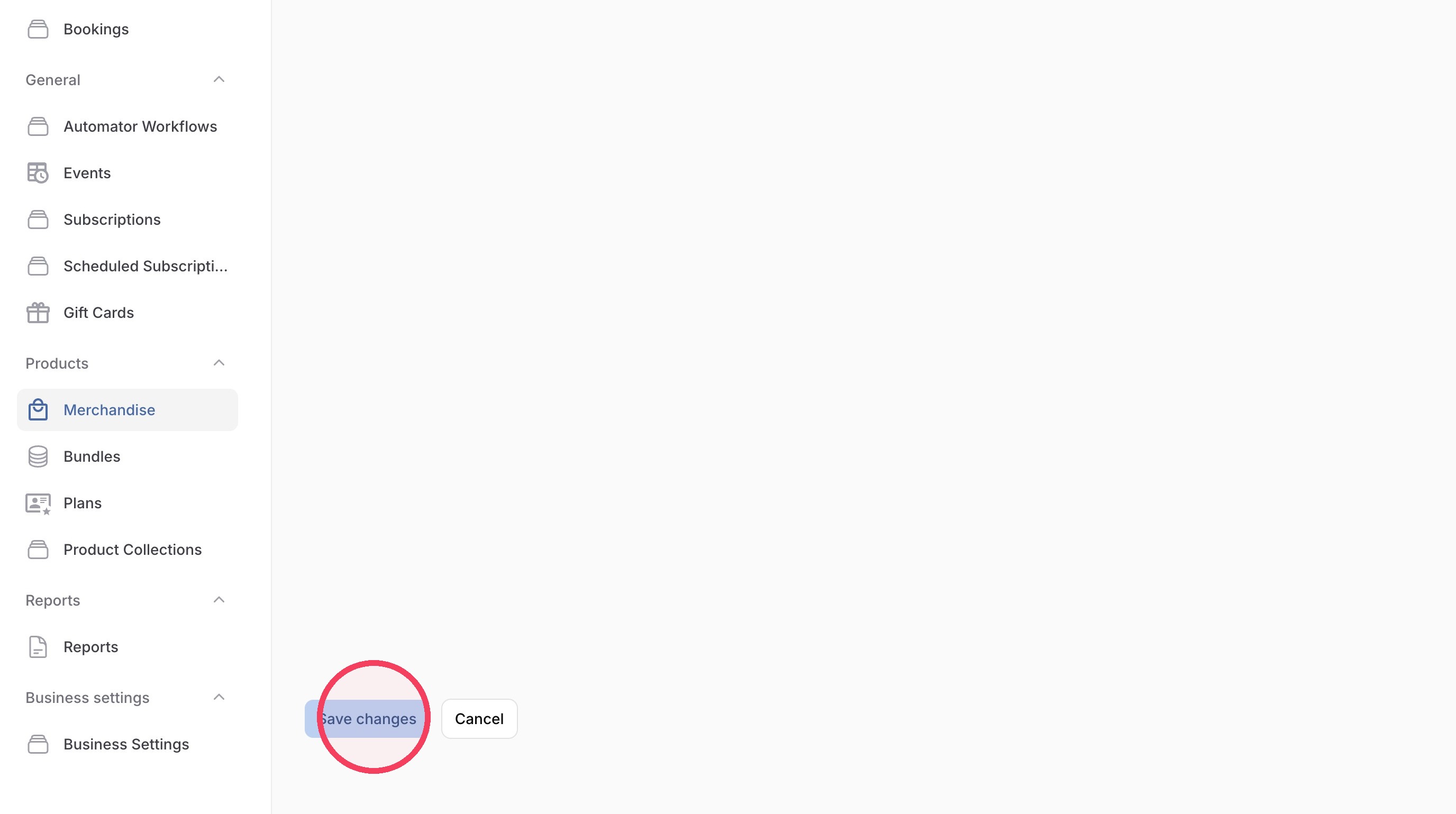
7. Click "Save changes"
Made with Scribe
When something is sold, CodexFit records the Cost Centre that was assigned to it at the time of the transaction. This means your historical reporting remains accurate even if you later change the Cost Centre assigned to a product, bundle or membership.
A bundle is sold in September while assigned to Class Packs.
In October, you change that bundle to Studio Revenue.
The September sale will continue to appear against Class Packs, while new sales from October onwards will be recorded against Studio Revenue.
This is intentional, as CodexFit won't make assumptions about how previous revenue should have been categorised.
Cost Centres in Reporting
Cost Centre information is available across a range of CodexFit reports, allowing you to export and analyse revenue by accounting category.
You'll see Cost Centre information within reports including:
- Orders: Details
- Orders: Split
- Orders: Split Becycle
- Collection Orders
- Gift Cards: Value
- Accounting: Credits
- Accounting: Unused Credits
- Bundles: Purchases
- Bundles: Purchases Detail
- Subscription Invoices
- Next Billing
- Subscription Charges
- Subscribers: Now
- Subscriber Status
- Debtors
Changing a Cost Centre
You can update the Cost Centre assigned to a product, bundle, membership or gift card at any time.
The change will apply to new transactions going forward and will not alter previously completed transactions.